7 September 2026 · 6 min read
Chrome extension website change monitoring for signed-in pages
By Kishan Makani · Updated 7 September 2026
Cloud monitors cannot see your session. The Chrome extension checks in the browser you already signed into.
Most website change tools assume the page is public. Paste a URL, let a datacenter browser open it, compare against last week. That works until the interesting part sits behind a login, a paywall, or a customer portal that never renders without your cookies.
That is the gap website change monitoring hits in practice. Cloud capture is the right default for competitor pricing, job boards, and public docs. It is the wrong default for your Amazon seller dashboard, an intranet status page, or a SaaS admin screen that only loads in your Chrome profile.
WebURLTracker splits the job on purpose. Public URLs run in the cloud. Signed-in pages run in the Chrome extension. Both land in the same workspace, with the same diffs and the same Slack or email path.
What Local Chrome actually does
Local Chrome means the check runs inside your browser tab, not on our workers. The extension reads the region you selected, captures the evidence, and reports it to your account. Your session cookies stay on your machine. Cloud workers never store them for that watch.
You still get a before-and-after. Visual and text diffs show up in the dashboard the same way cloud monitors do. Alerts can still go to email, Slack, Teams, Discord, Telegram, or a webhook. The only hard difference is where the browser ran.
- Public pages: cloud checks on a schedule with jitter
- Signed-in pages: Local Chrome checks from the extension
- Same folders, assignees, and change timeline in the app
- No API token paste: the extension uses your existing WebURLTracker session
When the extension is the better fit
Use Local Chrome when the page refuses to load without your login. Classic examples: seller portals, partner catalogs, ticket queues, and admin consoles. If a headless cloud browser would land on a sign-in wall, stop fighting it and move the watch to the extension.
Also use it when the site fingerprints datacenter IPs or serves a different catalog abroad. Running in your everyday Chrome often matches what you already see when you refresh the tab yourself.
Keep cloud monitors for everything that is happily public. Mixing both in one workspace is normal. Price drops on a public PDP can stay on cloud. Your back-office stock table can stay on Local Chrome. See price drop monitoring and competitor pages for the public side of that split.
Install, pin, and open the welcome page
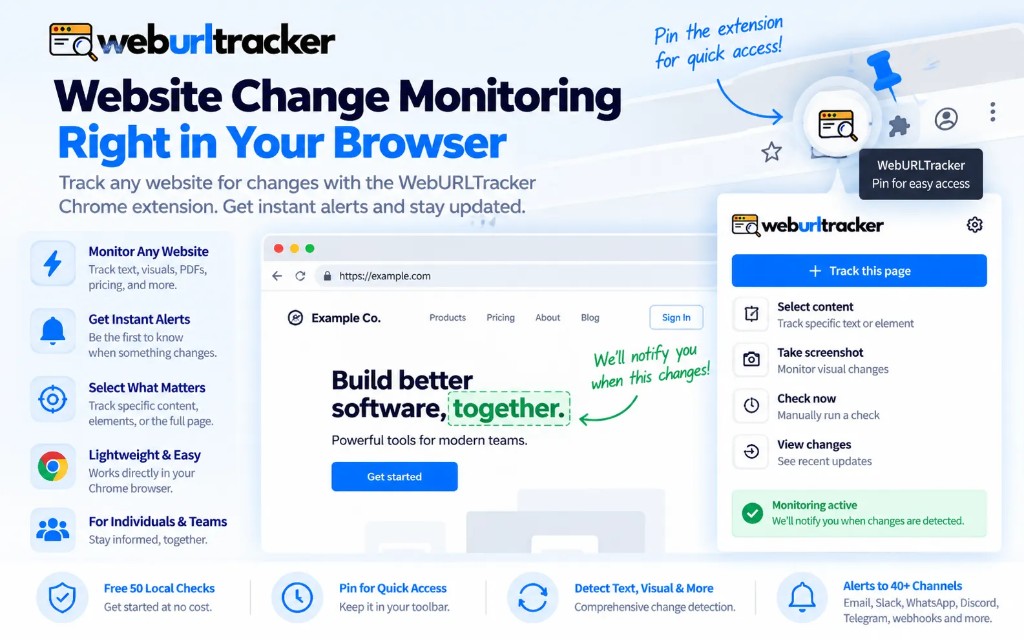
Install WebURLTracker from the Chrome Web Store listing. After install, Chrome opens the extension welcome page. Pin the extension from the puzzle menu so the toolbar icon stays visible. That one click matters more than people admit when you watch pages all day.
From there, open the dashboard, sign in if needed, and create a Local Chrome monitor from the current tab. Frequency comes from the monitor's Check every setting, not a separate interval buried in the popup.
- Install from the Chrome Web Store
- Pin WebURLTracker in the toolbar
- Sign in with the same account you use on the site
- Create a Local Chrome watch on the page you care about
- Confirm the first check lands in the change timeline
Cloud vs Local Chrome, without the marketing fog
Cloud is cheaper to scale and fine for public HTML or JS pages. Local Chrome spends Local check allowance because your machine does the work. Plans spell that out on Pricing. If you are estimating volume, the credits calculator helps you see how monitor count and interval stack up before you subscribe.
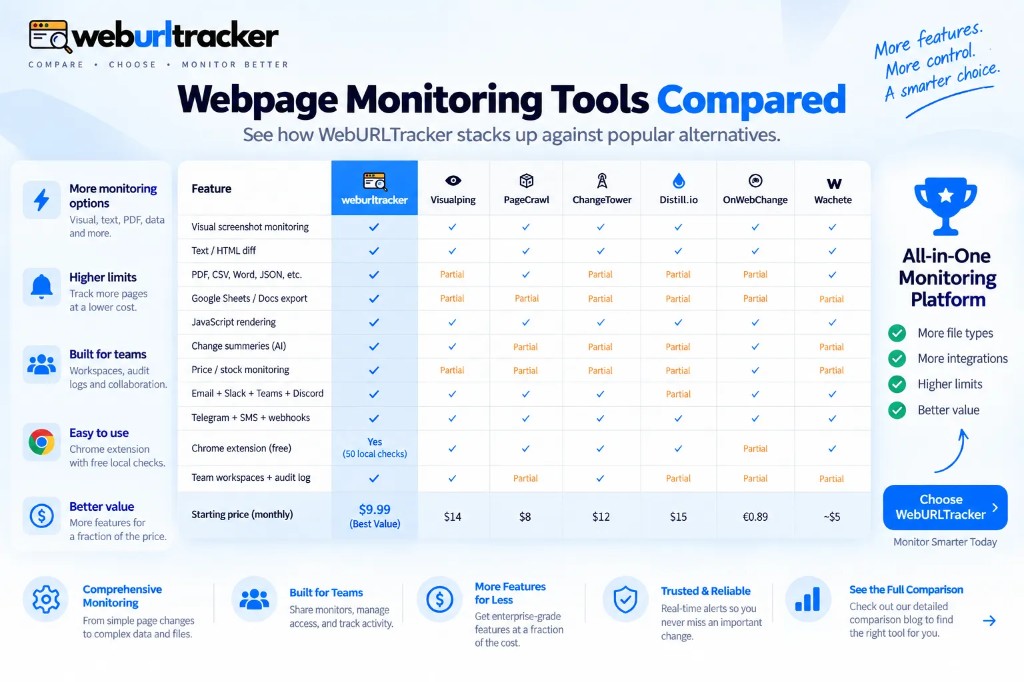
People sometimes ask whether an extension-only product like Distill.io is enough. If every watch must live in one browser on one laptop, a local-only watcher can be fine. If the team needs a shared timeline, folders, and someone else reviewing the same diff, you want Local Chrome plus a cloud workspace. That comparison is covered in more detail in our Distill.io alternative guide.
One more practical detail: Local Chrome only runs while Chrome is open on that machine. If you close the laptop overnight, those watches wait. Cloud monitors keep going. So if a signed-in page only matters during your workday, Local Chrome is fine. If you need a 3 a.m. catch on a public URL, leave that one on cloud.
Regions still matter behind login
A logged-in page is usually noisier than a marketing homepage. Sidebars refresh. Chat widgets bounce. Dashboards redraw charts. Watching the whole viewport will page you for nothing. Pick the block that holds the number or clause you care about, the same way you would on a public page.
That is the same idea behind visual vs text change detection. Use the visual evidence when layout moves. Use the text diff when a price or paragraph rewrites. Keep both on one monitor so you are not guessing which channel lied.
Alerts after a Local Chrome check
When a Local Chrome check finds a real change, the report still flows through the same notification path as cloud monitors. Email, Slack, Teams, Discord, and Telegram work on every plan. Paid plans add signed webhooks. Throttle repeats if a badge flickers. Mute a noisy watch instead of deleting it if you might need the history later.
If you are wiring alerts for the first time, start with the webpage change alert checklist: region, threshold, throttle, then channel. The extension does not invent a second alert system. It feeds the one you already configured.
Security notes people ask about
The extension needs access to the pages you monitor so it can read the selected region. It uses your existing WebURLTracker session rather than asking you to paste a long-lived API key into storage. Cloud monitors still reject localhost and private network URLs. Signed-in Local Chrome watches stay in your browser for a reason: that is where the session already lives.
For the wider privacy and security picture, read Security and the Privacy Policy. Short version: watched pages are not a resale product, and we do not train models on your captures as a side business.
A practical setup for one week
- Install and pin the extension, then open /extension/welcome once so the pin steps stick.
- Create two cloud monitors on public competitor pages you already refresh by habit.
- Create one Local Chrome monitor on a signed-in page that cloud capture cannot see.
- Route both into the same folder and the same Slack channel with throttle on.
- After a few days, delete or pause anything that only produced noise.
If the signed-in watch never fires, check that Chrome is open, the extension is signed in, and the monitor is not paused. Local Chrome needs the browser running. Cloud can keep checking while your laptop sleeps. That tradeoff is the whole point of the split.
Also confirm you selected Local Chrome (not Cloud) when you created the watch. A public URL can run either way. A login wall cannot. If you accidentally created a cloud monitor on a gated page, the capture will look empty or stuck on a sign-in screen. Delete it and recreate from the extension on the already-authenticated tab.
Where to go next
Install from the Chrome Web Store, skim the welcome guide, and paste a public URL on the homepage if you still want a cloud preview first. For product comparisons, start with Visualping alternative or the live vs matrix. Rate the extension on the store if it saved you a tab marathon. Honest reviews help the next person who is stuck refreshing a login wall.
Related blogs
- Best free website change detection tools in 2026
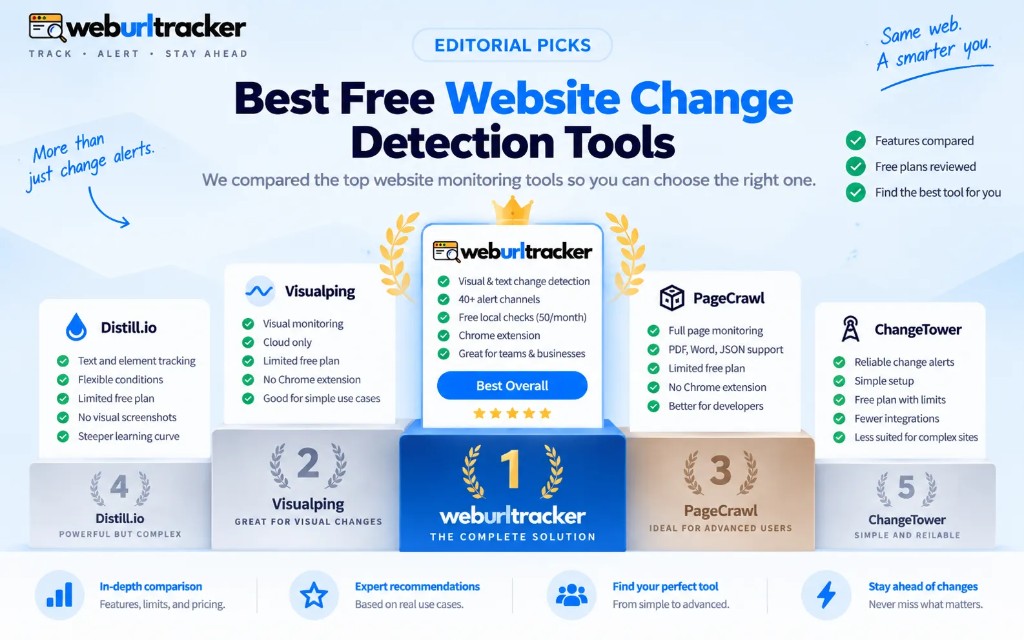
- PageCrawl, ChangeTower, and Wachete compared with WebURLTracker
- Webpage change alerts that do not spam the channel