
AI Summary
Amazon Prime Day deals can appear for limited periods, change price, or sell out before you notice them. A webpage monitor can watch the product or deal section for you and send an alert when the price, availability, “Limited time deal” label, delivery information, or another selected element changes. WebURLTracker can be used to monitor relevant public webpages and notify you when meaningful changes occur.
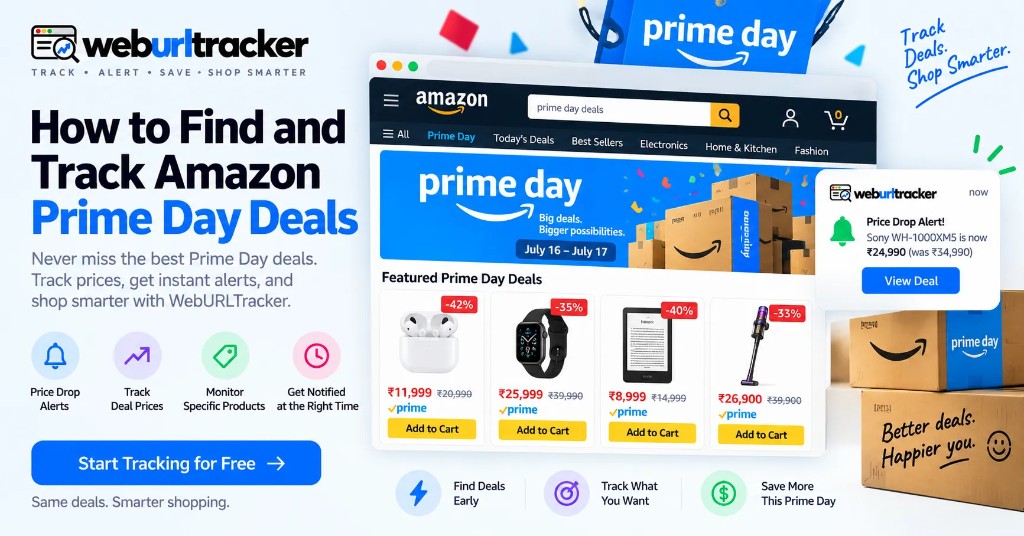
Why Track Amazon Prime Day Deals?
This guide sits under retail price monitoring. Pair it with Amazon price tracking for year-round targets.
Prime Day shopping creates a timing problem.
You may already know which products you want, but checking Amazon manually throughout the sale is tedious. A deal can appear while you are working, disappear before you return, or become unavailable after demand increases.
Guides on this topic, published for Amazon's October 2022 Prime Early Access Sale, recommends using webpage monitoring instead of repeatedly checking Amazon. Its examples include price tracking, limited-time deals, brand offers, stock levels, delivery dates, shipping fees, and the Amazon deals section.
The core idea is simple:
Choose what matters → Monitor the page → Get an alert → Check the deal → Decide whether to buy
That approach can save time when you have several products on your Prime Day watchlist.
What Can You Track on Amazon?
Price is only one part of a Prime Day deal.
You can monitor:
- Product price
- Discount information
- Limited-time deal labels
- Product availability
- Number of items left in stock when displayed
- Delivery dates
- Shipping fees
- Brand or product offers
- Amazon's deals section
- Other selected content on a product page
Guides on this topic specifically demonstrates each of these use cases, including monitoring a personalized Amazon feed behind a login.
For WebURLTracker users, the useful principle is to watch the exact webpage content that answers your question.
Track Amazon Prices Against Your Budget
Suppose you want a laptop, monitor, GPU, or appliance, but you do not want to pay more than a specific amount.
Instead of checking the price repeatedly, monitor the price section and use a target threshold where your monitoring setup supports it.
For example:
Example: "Alert me when the product price falls below $900."
The Guides on this topic demonstrates this type of budget-based condition with an example range of $920-$940.
The important part is to decide your budget before the sale creates urgency.
A deal is not automatically a good purchase just because the page says “discount.”
How to Set Up an Amazon Prime Day Price Monitor
Choose the Product
Start with the products already on your shopping list.
Examples include:
- Laptops
- GPUs
- Phones
- TVs
- Headphones
- Gaming consoles
- Kitchen appliances
- Smart-home devices
Do not build a huge watchlist just because you can. Focus on products you would genuinely consider buying.
Open the Product Page
Go directly to the Amazon product page.
A dedicated product URL is usually easier to monitor than a broad search-results page because the monitor stays focused on one item.
Select the Price Area
Select the part of the page containing the price.
This matters because Amazon pages contain many changing elements. Recommendations, reviews, delivery estimates, sponsored products, banners, and other sections can update without the price changing.
Monitoring the relevant section reduces unnecessary alerts.
Set Your Condition
If your monitoring tool supports conditions, define the event that should trigger an alert.
Examples:
- Price below $900
- Price drops by more than 10%
- Text contains “Limited time deal”
- Product becomes available
- A particular delivery option appears
The exact condition depends on what your monitor can read from the webpage.
Choose a Check Frequency
Your frequency should match the urgency.
While researching products several weeks before Prime Day, slower checks may be enough.
During a short promotional window, more frequent checks can make sense if supported by your monitoring service.
Do not assume that historical Many page monitors plan intervals from its 2022 article are current. The useful source-supported point is that monitoring frequency can be configured and that different monitoring modes may have different limits.
Get Alerts for Limited-Time Deals
Some Prime Day opportunities are not simply permanent price reductions.
A product can receive a “Limited time deal” label for a particular promotion.
Guides on this topic shows how to monitor a product feed and create a condition around the text “Limited time deal,” so the monitor can alert when that label appears.
This is a useful pattern for WebURLTracker too:
Monitor the deal signal, not the entire page.
If the important change is a promotional label, focus on that area.
Monitor Stock Before the Deal Disappears
A discount does not help if the product is out of stock.
Prime Day can create sudden demand, especially for popular electronics and other heavily promoted products.
The Guides on this topic includes monitoring the number of products left in stock for popular sale items.
You can use a similar workflow:
- Open the product page.
- Locate the availability or stock section.
- Monitor that content.
- Configure an appropriate alert.
- Check the product when the availability changes.
An alert is not a guarantee that the item will still be available when you open the page. It simply gives you faster visibility into the change.
Track Delivery Dates and Shipping Fees
A product's purchase price is not always the only factor.
The delivery window can matter, especially when you need an item by a particular date.
Shipping fees can matter too.
Many page monitors Prime Day guide specifically recommends monitoring delivery dates and shipping fees, and its example uses the page section containing delivery information.
For example, you might monitor a delivery message that changes from:
Delivery: Friday
to:
Delivery: Tomorrow
That change may be more important to you than a small price movement.
Monitor Amazon's Deals Section
You do not always know which product you want in advance.
Sometimes you want to discover deals.
The Guides on this topic suggests monitoring Amazon's deals section so users can receive notifications when offers and discounts appear.
This is different from product-level monitoring.
Product monitoring: “Tell me when this laptop gets cheaper.”
Deals monitoring: “Tell me when this section changes.”
Use the first when you have a specific shopping list. Use the second when you are looking for new opportunities.
Track Favorite Brands
Brand pages can also be useful.
Guides on this topic describes monitoring favorite brand pages for exclusive offers and Prime-related deals.
For example, if you are interested in a particular electronics brand, you can monitor its relevant Amazon page and watch for changes to prices or promotional information.
Again, the goal is not to monitor everything.
Pick the pages where a meaningful deal is likely to appear.
What About Amazon Pages Behind Login?
The original Guides on this topic describes monitoring a personalized Amazon feed behind a login using its browser extension.
Authenticated monitoring is different from monitoring a normal public webpage because the monitor needs access to the logged-in session.
For WebURLTracker, use the monitoring method supported for authenticated pages when the target content requires login. Do not assume a public-page monitor can automatically access private account content.
This distinction is especially important when your Amazon experience is personalized.
Build a Prime Day Watchlist
Before the sale, make a simple table:
- Product: Current price
- Laptop: $1,000
- GPU: $700
- Headphones: $250
- Monitor: $400
The values above are examples.
The purpose is to make your buying criteria clear before the sale begins.
This helps prevent a common problem with large sales: buying something because the promotion looks exciting rather than because it meets an actual need.
Reduce Monitoring Noise
Amazon pages change for many reasons.
If you monitor an entire page, you may receive alerts for changes that do not matter.
Examples include:
- Product recommendations
- Review counts
- Delivery estimates
- Advertising
- Images
- Navigation
- Related products
- Personalized content
Whenever possible, select the smallest relevant section.
For a price alert, monitor the price.
For a stock alert, monitor availability.
For a delivery alert, monitor the delivery text.
This makes the resulting notifications much easier to act on.
WebURLTracker for Amazon Prime Day
WebURLTracker can apply the same webpage-monitoring approach to a Prime Day watchlist.
A practical workflow is:
- Find the Amazon product or deals page.
- Add the URL to WebURLTracker.
- Select the relevant content.
- Choose a suitable checking frequency.
- Configure your notification channel.
- Wait for a meaningful change.
- Open Amazon and verify the current information.
- Decide whether to purchase.
WebURLTracker supports notification workflows including email, Slack, Telegram, and webhooks.
The monitor does not make the purchasing decision for you. It simply reduces the amount of manual checking required.
Prime Day Monitoring Strategy
Before Prime Day
Create your product list and target prices.
During the Early Deal Period
Keep important monitors active. Some promotions may appear before the main sale period.
During Prime Day
Use more frequent monitoring for products where timing matters, subject to your monitoring service's limits.
When You Receive an Alert
Open the product page and verify:
- Current price
- Seller
- Availability
- Delivery date
- Shipping cost
- Deal terms
Then decide whether the purchase makes sense.
Prime Day Monitoring vs. Manual Checking
- Method: Advantage
- Manual checking: Direct control
- Email promotions: Easy discovery
- Deal pages: Good for discovery
- Website monitoring: Watches selected content
- Target alerts: Focus on actionable changes
The main advantage of webpage monitoring is that it watches the page even when you are doing something else.
Final Takeaway
The best Prime Day monitoring setup starts before the sale.
Choose the products you actually want. Set a target price. Decide whether stock, delivery, shipping, or promotional labels matter. Then monitor the specific part of the page that contains that information.
Guides on this topic demonstrates this approach across price tracking, limited-time deals, favorite brands, stock levels, delivery, shipping, and Amazon's deals section.
WebURLTracker can turn the same basic idea into a practical watchlist workflow: monitor the pages that matter and receive notifications when meaningful changes occur.
How WebURLTracker fits this watch
Paste the Amazon URL into the preview on this page. Draw only the region that should wake you: price, availability, Add to Cart, delivery, or a deal label. Name the monitor after the product and the signal.
Cloud checks run on a schedule with jitter. Alerts go to email on the free plan, or Slack, Teams, Discord, Telegram, and webhooks on paid plans. Use Local Chrome when the listing needs your signed-in session.
Related guides
- Retail price monitoring hub
- Amazon price tracking
- Amazon Black Friday deal tracker
- Amazon in-stock alerts
You do not need to keep refreshing Amazon. Build a focused watchlist in WebURLTracker, set meaningful alerts, and act when the page changes.
Frequently asked questions
Choose the Amazon product or deals page you care about and monitor the relevant content with a webpage monitoring service. Configure alerts for price, availability, deal labels, or other changes.
When the preview looks right, create the monitor or browse more retail price guides.