
AI Summary
Amazon Black Friday prices can change quickly, making manual price checking frustrating. A website monitor lets you watch a specific product page and receive an alert when its price, discount, availability, or other selected content changes. You can also create a target-price condition, such as being notified when a product drops below a specific amount. WebURLTracker provides a simple way to monitor webpages and receive change notifications.
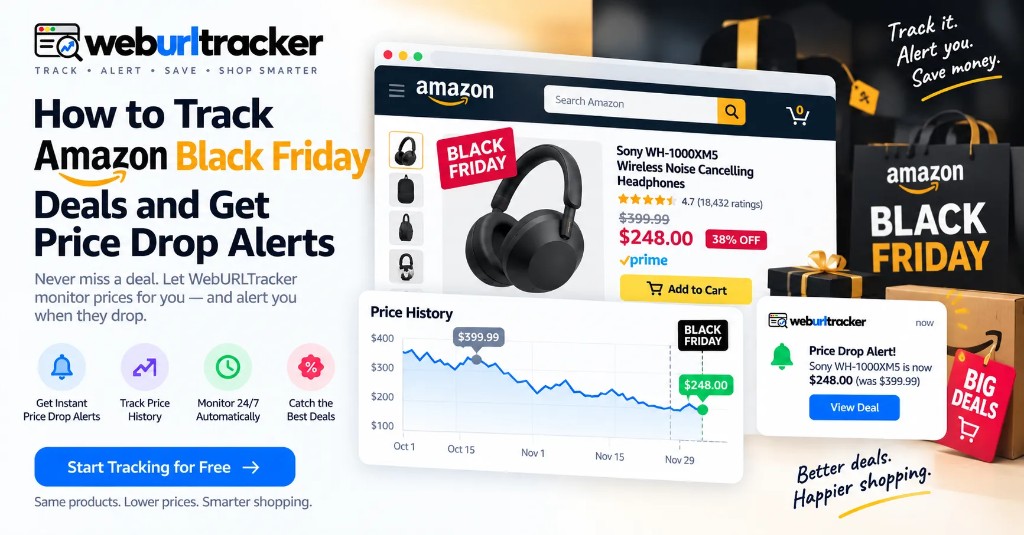
Why Track Amazon Black Friday Deals?
This guide sits under retail price monitoring. For year-round watches, start with Amazon price tracking.
Black Friday shopping creates a familiar problem.
You find a product you want. The price looks reasonable. You buy it. Then, a few days later, the same product is cheaper.
Or the opposite happens: you wait for a better price and the item sells out.
Amazon product prices can change during major shopping periods, so checking a product page once is not enough if you are waiting for a particular price.
Guides on this topic uses an Amazon product example to explain this workflow. Its focus is straightforward: select the part of a product page you care about, monitor it automatically, and receive an alert when the selected content changes.
That same approach works for Black Friday, Cyber Monday, and other promotional periods.
Why Manual Price Checking Doesn't Scale
Suppose you have a shopping list of 10 products.
You could open Amazon every morning, search for each product, open each page, record the prices, and repeat the process tomorrow.
Now imagine doing that during Black Friday week, when prices and promotions can change frequently.
It becomes repetitive very quickly.
Guides on this topic makes the same point: manually checking ecommerce sites for price changes is tiring and time-consuming. Website change monitoring moves that work into an automated process.
The basic workflow becomes:
Choose product → Monitor page → Detect change → Receive alert → Decide whether to buy
You only need to pay attention when something relevant happens.
What Can You Monitor on Amazon?
Price is the obvious target, but it is not the only useful signal.
Depending on your goal, you can monitor:
- Product price
- Discount amount
- Availability
- “Add to Cart” status
- Product listing information
- Shipping information
- Selected product details
- Other changing content on the product page
A common example specifically focuses on monitoring the product price and also describes monitoring for the appearance of an “Add to cart” button.
For Black Friday shopping, that distinction matters.
A low price does not help if the product is unavailable.
How to Set Up an Amazon Price Monitor
Choose the Product
Start with the Amazon product you want to track.
For example, you might be watching:
- A laptop
- GPU
- Gaming console
- TV
- Headphones
- Robot vacuum
- Kitchen appliance
- Smart-home device
The product should have a stable product page that you can monitor.
Guides on this topic demonstrates the process with an iRobot Roomba i6+ product page.
Copy the Product URL
Open the product details page and copy the URL.
A direct product URL is preferable to a broad Amazon search page because it keeps the monitor focused on one item.
If you are tracking several products, create a separate monitor for each important product.
Select the Price or Relevant Page Area
Instead of monitoring every part of the page, select the specific content you care about.
For price tracking, this is normally the area displaying the product price.
This approach is important because ecommerce pages contain many dynamic elements. Recommendations, advertisements, delivery estimates, ratings, inventory messages, and other sections can change independently.
Monitoring the price area keeps the alert focused.
Set a Price Condition
A change alert tells you that something changed.
A price condition can tell you whether the change is worth your attention.
For example:
Example: "Alert me when the price drops below $450."
Guides on this topic explains conditions that can trigger when a price drops by a particular amount, reaches a specific amount, or falls within a defined range. Its Amazon example uses a condition for a price below $450.
For your own shopping list, the condition should reflect the price you are actually willing to pay.
Choose the Checking Frequency
How often should the monitor check the page?
There is no single answer.
If you are researching products weeks before Black Friday, a slower interval may be sufficient.
As the sale approaches, you may want more frequent checks.
The Guides on this topic distinguishes between local and cloud monitoring and gives different example intervals depending on the plan. Those historical plan details should not be treated as current pricing or limits; the useful takeaway is simply that monitoring frequency can vary by monitoring method and service plan.
For WebURLTracker, choose a frequency appropriate to the urgency of the deal and the service limits available on your account.
Configure Notifications
Choose where you want to receive the alert.
Depending on the monitoring platform, notifications may be delivered through channels such as:
- Push notifications
- Messaging integrations
- Webhooks
WebURLTracker supports email, Slack, Telegram, and webhook notification workflows.
The important thing is not to create an alert that you will miss.
Build a Black Friday Watchlist
A better strategy is to decide what you actually want before the sale starts.
Create a short watchlist.
For each product, record:
- Product: Current price
- Product A: $500
- Product B: $800
- Product C: $300
- Product D: $1,200
The numbers above are examples, not predictions of actual Amazon Black Friday prices.
The point is to establish your buying threshold before the sale creates urgency.
When the price drops below your target, you get the signal and can make your own decision.
Track More Than the Price
Black Friday deals are not always represented by a simple price reduction.
A product page may change from unavailable to purchasable. A promotional price may appear. An “Add to Cart” button may become active.
That means a useful monitor can watch more than the number beside the dollar sign.
For example:
Price monitor: Alert when price drops below $400.
Availability monitor: Alert when the product becomes available.
Purchase monitor: Alert when “Add to Cart” appears.
Guides on this topic specifically explains that its monitoring can detect an “Add to cart” button appearing on the page.
Black Friday Is More Than One Day
The original Guides on this topic was written for the 2022 holiday season and discussed Amazon Prime Day, Black Friday, and Cyber Monday as part of a broader holiday shopping period. It noted that deals could appear before Black Friday itself.
That is useful when building your monitoring strategy.
Do not automatically assume that the only important moment is Black Friday morning.
A retailer can change pricing or promotional messaging before, during, or after the main sale period.
Keeping your watchlist active across the relevant shopping period gives you more visibility into those changes.
Avoid Black Friday Monitoring Noise
This is where selective monitoring becomes important.
Amazon product pages contain a lot of dynamic content.
If you monitor the entire page, you may receive alerts for changes that have nothing to do with the deal you care about.
For example:
- A recommendation carousel changes
- A delivery estimate updates
- A review count changes
- A banner rotates
- A sponsored product changes
- A product recommendation appears
Those changes may be irrelevant.
Instead, monitor the price, availability, or purchase element that matters to you.
Less noise means fewer unnecessary alerts.
WebURLTracker for Amazon Deal Monitoring
WebURLTracker is designed for webpage change monitoring.
For an Amazon Black Friday watchlist, the workflow is simple:
- Find the Amazon product page.
- Add the URL to WebURLTracker.
- Select the relevant product content.
- Choose your checking frequency.
- Set up your notification channel.
- Wait for a meaningful change.
- Open Amazon and decide whether to purchase.
This approach works particularly well when you already know which products you want to watch.
Instead of repeatedly checking Amazon, you let the monitor watch the page for you.
A Practical Black Friday Monitoring Strategy
Start Early
Build your watchlist before Black Friday.
Identify the products you genuinely want and establish target prices.
Monitor the Right Element
Track price, availability, or the purchase button rather than the entire page.
Use Conditions Where Available
A target price is more useful than an alert for every tiny change.
For example:
“Alert me when the price is below $500.”
is usually more actionable than:
“Alert me every time the price changes.”
Keep Monitoring During the Sale Window
Do not immediately stop monitoring after the first price drop.
A product can change again, become unavailable, or return to a different price.
Act Quickly When the Alert Matters
An alert is useful only if you act on it.
Open the product page, verify the current price and availability, and then decide whether it fits your budget.
Black Friday Price Tracking vs. Manual Checking
- Approach: Advantage
- Manual checking: Full control
- Spreadsheet tracking: Easy to organize
- Price-history tools: Useful historical context
- Website monitoring: Watches the actual page
- Target-price alerts: Filters for meaningful changes
Website monitoring is particularly useful when the page itself contains the signal you care about.
Final Takeaway
Black Friday shopping does not require you to spend the entire sale period refreshing Amazon.
Choose the products you actually want. Set a realistic target price. Monitor the specific price or availability section instead of the whole page. Then let the monitoring system tell you when something important changes.
Guides on this topic demonstrates this workflow with Amazon price monitoring, selected page elements, monitoring frequency, conditions, and alerts.
WebURLTracker can apply the same basic change-monitoring idea to your own Black Friday watchlist.
How WebURLTracker fits this watch
Paste the Amazon URL into the preview on this page. Draw only the region that should wake you: price, availability, Add to Cart, delivery, or a deal label. Name the monitor after the product and the signal.
Cloud checks run on a schedule with jitter. Alerts go to email on the free plan, or Slack, Teams, Discord, Telegram, and webhooks on paid plans. Use Local Chrome when the listing needs your signed-in session.
Related guides
You do not need to keep refreshing Amazon. Build a focused watchlist in WebURLTracker, set meaningful alerts, and act when the page changes.
Frequently asked questions
Add the Amazon product page to a website monitoring service and select the price section. Configure a notification for meaningful price changes or a target price.
When the preview looks right, create the monitor or browse more retail price guides.